PicTextEdit Automatic Mode: Basic Tutorial for Editing Text in Images
The automatic mode can handle most image text modifications. However, if
the text box contains inconsistent font sizes or colors, or if the
background color cannot be restored, you can use the manual mode for
modifications.
Video Tutorial
Illustrated Tutorial
Ⅰ. Preparation of the operating environment
- Open the PicTextEdit app.
- Prepare the screenshot you need to modify (it is recommended to use a high-resolution original image).
- When selecting images in the photo album, check the "Original Image" button.
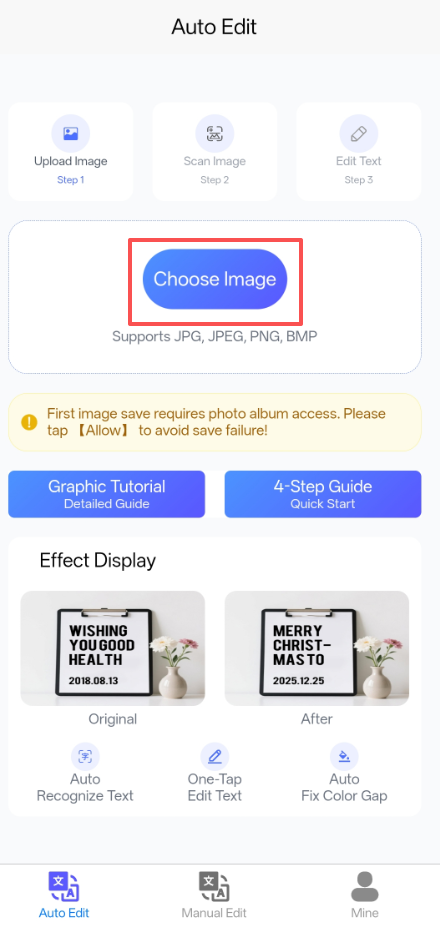
Operating Environment Preparation (Step 1: Choose Image / Step 2:
Upload Image / Step 3: Scan Image)
Note: First image save requires photo album access. Please tap 【Allow】 to avoid save failure!
Ⅱ. Operating Steps
- Click to upload photos from your album; the program will automatically start scanning the text in the images (approximately 2 seconds).
- The program will automatically mark the editable text areas (with red dashed lines).
Ⅲ. Entering Edit Mode
Click on the dashed box to activate edit mode, and then enter the new text at the bottom. Each marked dashed box can be edited.
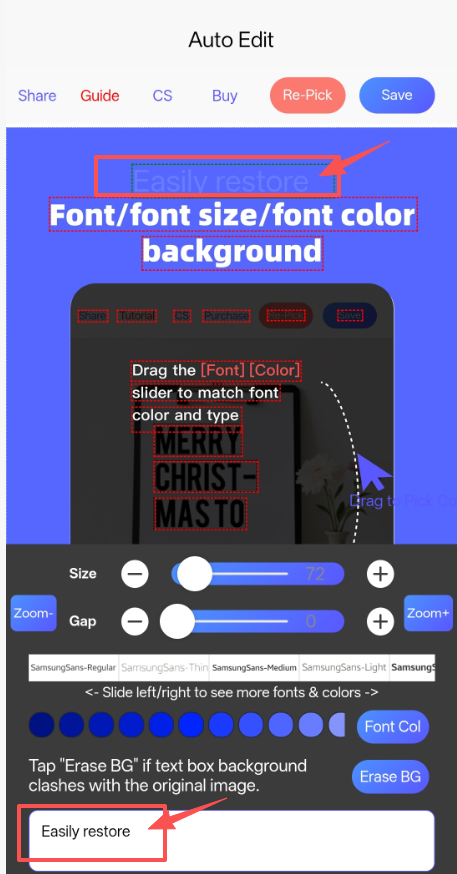
Edit Mode Interface (Font/Font Size/Font Color Adjustment / Erase
BG Function)
Ⅳ. Adjust font type / Restore background color
- Click the "Size" slider to adjust the text font size.
- Click "Gap" to optimize the letter spacing.
- Drag the font list to switch between different fonts.
- Drag the finger control and then click "Font Color" to restore the font color.
- Click "Erase BG" to restore the font background color.
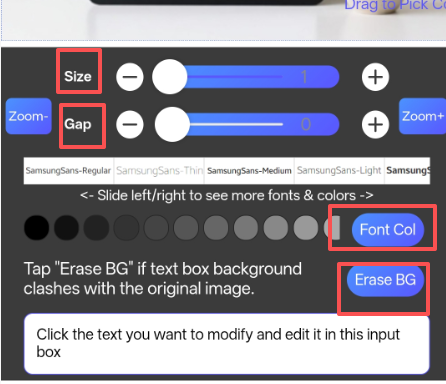
Font Adjustment & Background Restoration Interface
Ⅴ. Effect Comparison
If high fidelity is required, please repeatedly refine and compare the font type, letter spacing, and font size of the text in the image through Step Ⅳ.
Ⅵ. Frequently Asked Questions
- Font types don't match?
- Do the font colors not match?
- How are usage counts calculated
- Image failed to save?
- The text in the image cannot be recognized?
- Why does the image quality become blurry after saving?
- The background color in the text box doesn't match?
- How to handle text boxes containing multiple font colors/sizes in the original image?