Do the font colors not match?
1. Text Editing & Color Adjustment
After the text enters editing mode, you will need to manually proofread and adjust the font color. The system will automatically suggest 20 similar color variations, or you can drag the color bar to select the desired font color.
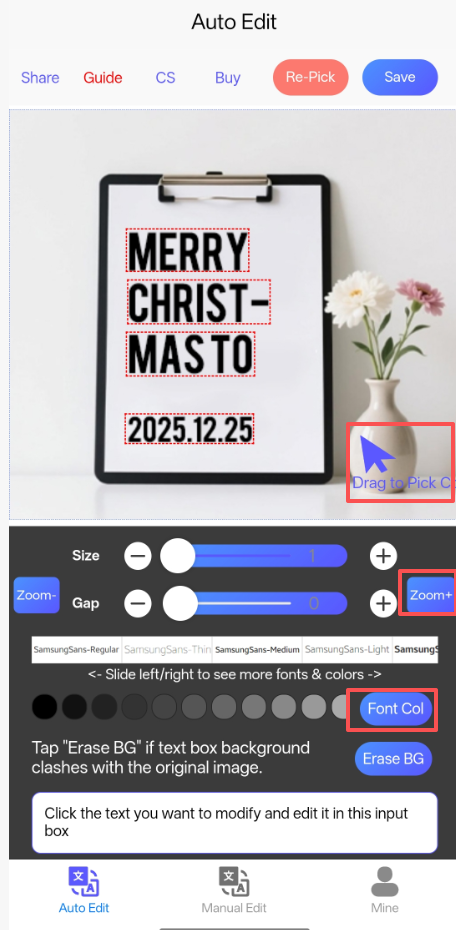
• Tap "Erase BG" if text box background clashes with the original image.
• Click the text you want to modify and edit it in this input box
• Available Functions: Mine / Auto Edit / Manual Edit
• Font Options: SamsungSans-Regular / SamsungSans-Thin / SamsungSans-Medium / SamsungSans-Light (Slide left/right to see more fonts & colors)
• Tools: Size Adjustment / Zoom- / Zoom+ / Gap Adjustment
2. Accurate Color Selection
Select the color by dragging the mouse pointer to the desired area on the screen. If the color selection is inaccurate after clicking the button, you can click the "Enlarge Image" button before selecting the color again.
3. Multiple Selection Attempts
If the selected color is inaccurate, please drag the mouse and try selecting the color multiple times.
4. Gradient Colors & Special Effects
If the text in your image uses gradient colors or special effects (such as glow, blur, or ink effects), our software cannot handle it. You can use professional image editing software like Photoshop for manual retouching.
Demo Video
Watch the font color selection demo video: https://youtube.com/shorts/Yf5E0vGfPvA?feature=share